

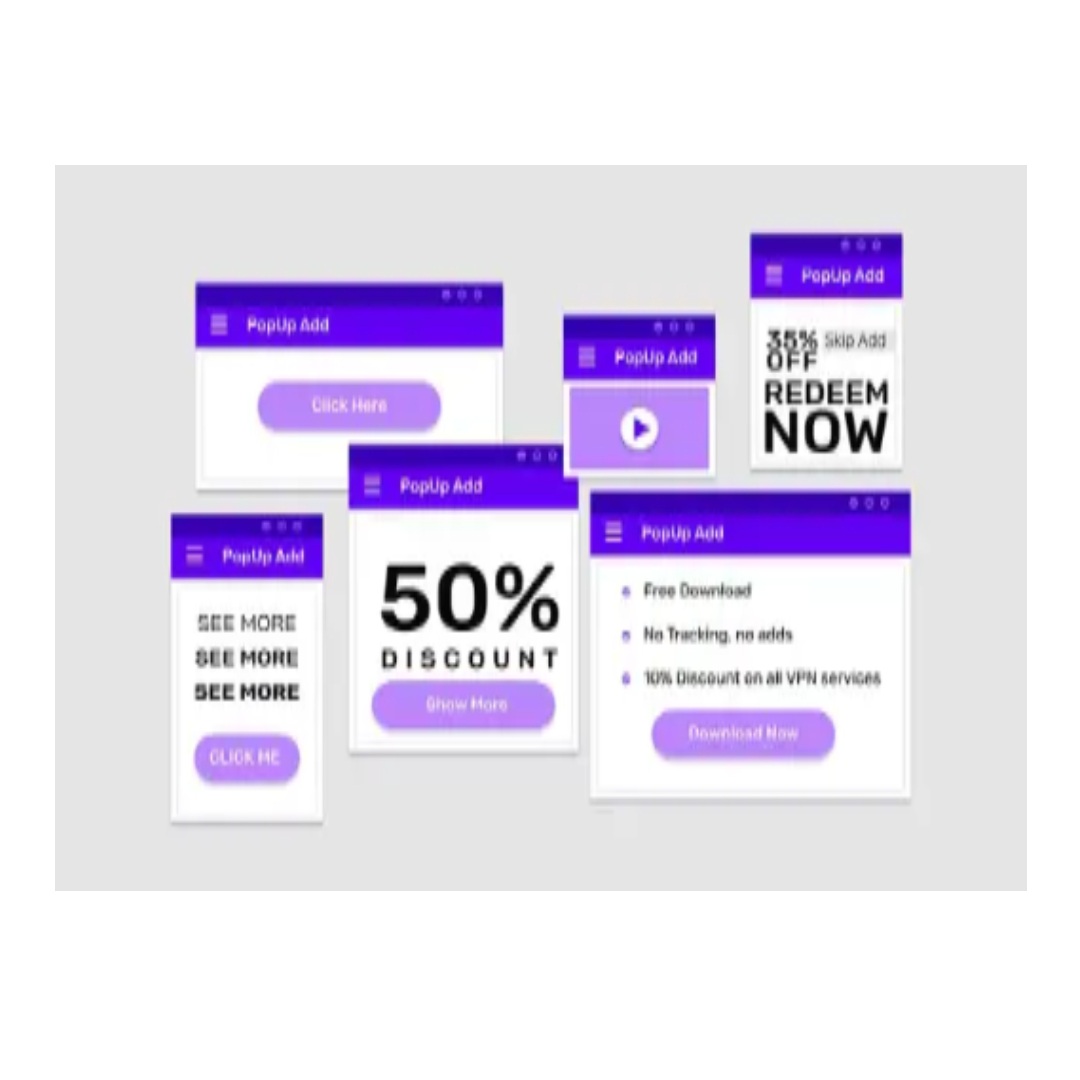
Pop-ups are windows that automatically appear on a web page while browsing. These elements usually display advertisements, alert messages, subscription invitations, login forms, among other types of content. They can be considered annoying and irritating, as they interrupt the browsing experience.
Pop-up ads can be inconvenient and, in some cases, hide scams with promises of prizes, making it important to know how to block and unblock them on your iPhone to ensure safety and comfort when using your cell phone.
Fortunately, you can block or unblock pop-ups on your phone or directly in your browser, which helps keep your web browsing smoother and safer. That’s why we’ve created this tutorial to show you how to unblock pop-ups on your phone. Check it out!
What is a pop-up?
A pop-up is a window that appears on the screen while you are browsing a website, often causing irritation to the user and interrupting the browsing experience.
In addition, there may be accidental clicks on pop-ups, which can lead to the installation of malware, impairing the functioning of your device.
Are pop-ups dangerous?
Most pop-ups are not dangerous and can actually make it easier to interact with the websites you visit most often. They can be useful for selecting preferences, displaying marketing messages, or presenting cookie consent forms.
If you allow pop-ups in your browser, you can always clear your cache and disable cookies later to remove them.
However, some pop-ups are dubious and even dangerous, and may contain fake close buttons that perform unexpected actions instead of closing the window.
A floating ad or pop-up on the page itself may appear as a layer over the browser screen, appearing to be the web page. If these pop-ups lead you to install unwanted software, you can use a bloatware removal tool to eliminate unnecessary applications.
The most dangerous pop-ups can damage your system and flood your browser with adware. Other suspicious pop-ups may function as malvertising, filling your system with different types of malware.
It is essential to stay informed about cybersecurity threats to protect yourself and your system. If you suspect that you have downloaded malware through a pop-up, remove it from your device immediately.
How do I know which pop-ups to block or unblock?
Since some pop-ups can be annoying and others can be useful, there is no single solution to the question of how to deal with pop-up ads. Consider allowing pop-ups only on websites you know and trust, and block them on websites whose security is uncertain. Maintain safe browsing habits and permanently block websites that display suspicious pop-ups.
How to unblock pop-ups on iPhone?
By default, pop-ups are blocked in Safari, the iPhone’s default browser, but they can be easily enabled. If you want to unblock pop-ups in Safari on your iPhone, just follow these simple steps:
- Go to “Settings” and scroll down until you find “Safari”;
- In the “General” section, disable “Block Pop-ups.”.

To block pop-ups, simply follow the same steps and enable “Block Pop-ups.”
How to unblock pop-ups in Chrome
By default, Google Chrome prevents pop-ups from automatically appearing on your screen. When a pop-up is blocked, the address bar displays an icon indicating the block. If you wish, you can allow these pop-ups to appear.
If you continue to receive pop-ups even after blocking them, follow these instructions:
You may have signed up to receive notifications from a website. If you no longer want to receive these notifications, you can block them. Learn how to manage your notifications. Your computer or smartphone may be infected with malware. Learn how to remove malware.
On iPhone and iPad
To enable or disable pop-ups:
- Open the Chrome app on your iPhone or iPad.
- Tap More, then Settings.
- Select Content settings, then Block pop-ups.
- Turn the Block pop-ups option on or off.
How to unblock pop-ups on Android phones
To enable or disable pop-ups:
- Open the Chrome app on your Android smartphone or tablet.
- To the right of the address bar, tap More, then Settings.
- Select Permissions, then Pop-ups and redirects.
- Turn off Pop-ups and redirects.

Unblock pop-ups in Chrome on your PC
To change the default settings for pop-ups and redirects:
- On your computer, open Chrome.
- In the top-right corner, click More, then Settings.
- Select Privacy and security, then Site settings.
- Click Pop-ups and redirects, then choose your preferred setting.

How to unblock pop-ups on Mac
Some pop-up messages are beneficial, as they are designed to enhance the user experience with helpful notifications or keep the website functioning properly. Therefore, by disabling the pop-up blocker in Safari and allowing pop-ups, you can improve your browsing experience.
To enable pop-ups on Mac:
- Click on the Safari drop-down menu and select Preferences.
- Go to the Websites tab at the top of the screen and choose Pop-up Windows from the menu on the left. If there are specific settings for any websites in the “Configured sites” box, remove them by clicking the “Remove” button.
- Set the “When visiting other websites” button to Allow.
- That’s it—all pop-ups will now be allowed in Safari.
Have you learned how to unblock pop-ups on your cell phone?
We hope this article has helped you block and unblock pop-ups on your cell phone, iPhone, or any other device you use to browse the internet.
